
The Email page lets users read, organise, and act on messages from inside JMS. It connects to the user’s Microsoft mailbox and keeps day-to-day communication close to related JMS work such as channels, notices, tickets, and conversations.
Use this page when you need to:
- Review incoming JMS and Microsoft email messages.
- Open a message and read the full email body.
- Mark emails as read or unread.
- Flag, delete, archive, or move messages.
- Create and manage search folders.
- Access message actions such as print, save email, block sender, and create ticket.
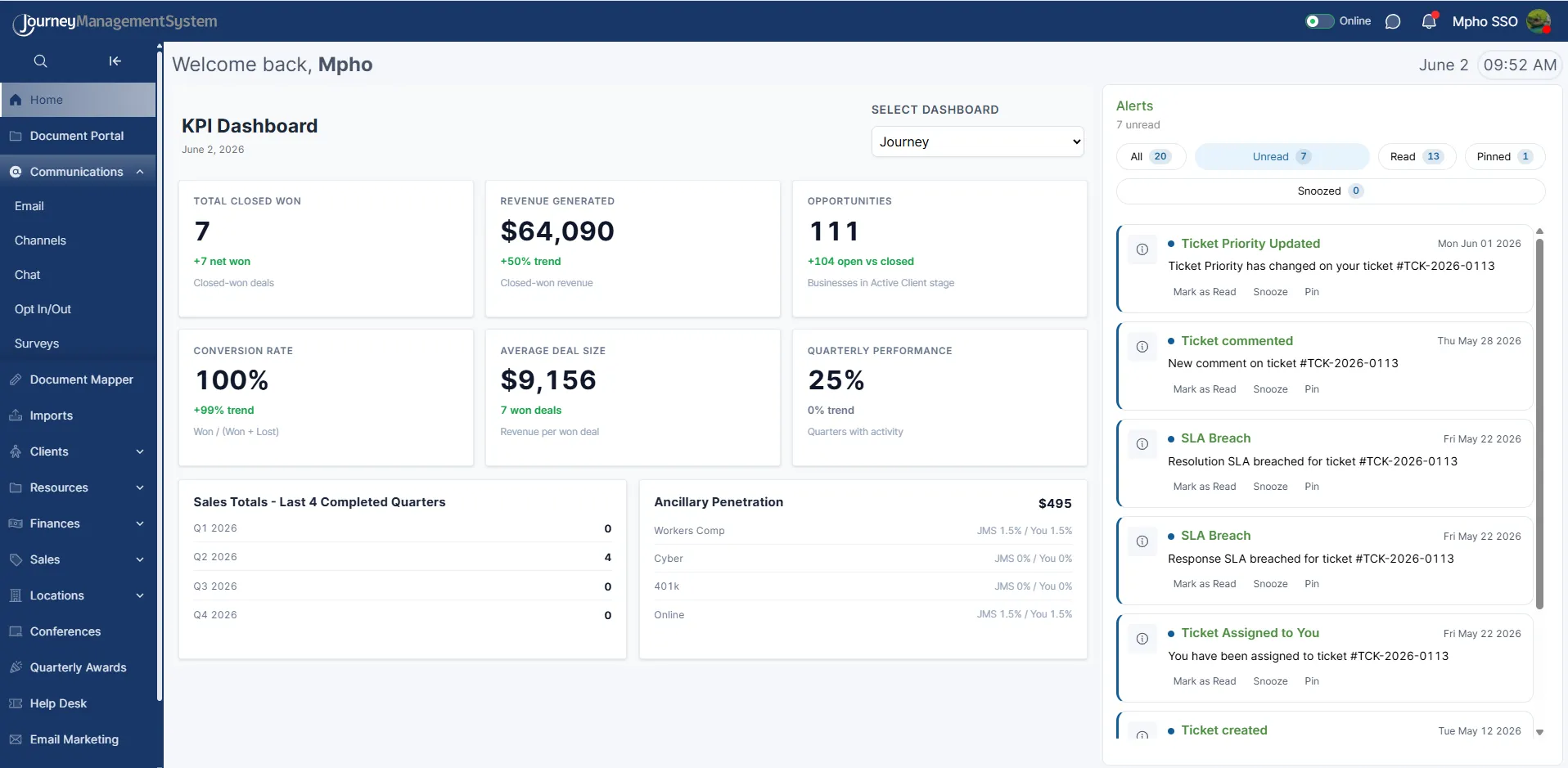
Open Email from the Communications section in the left navigation.
Where to Find It
Section titled “Where to Find It”Open Communications from the left navigation, then select Email.
The Email workspace opens with three main areas:
- Mailbox folders on the left.
- Message list in the middle.
- Reading pane on the right.
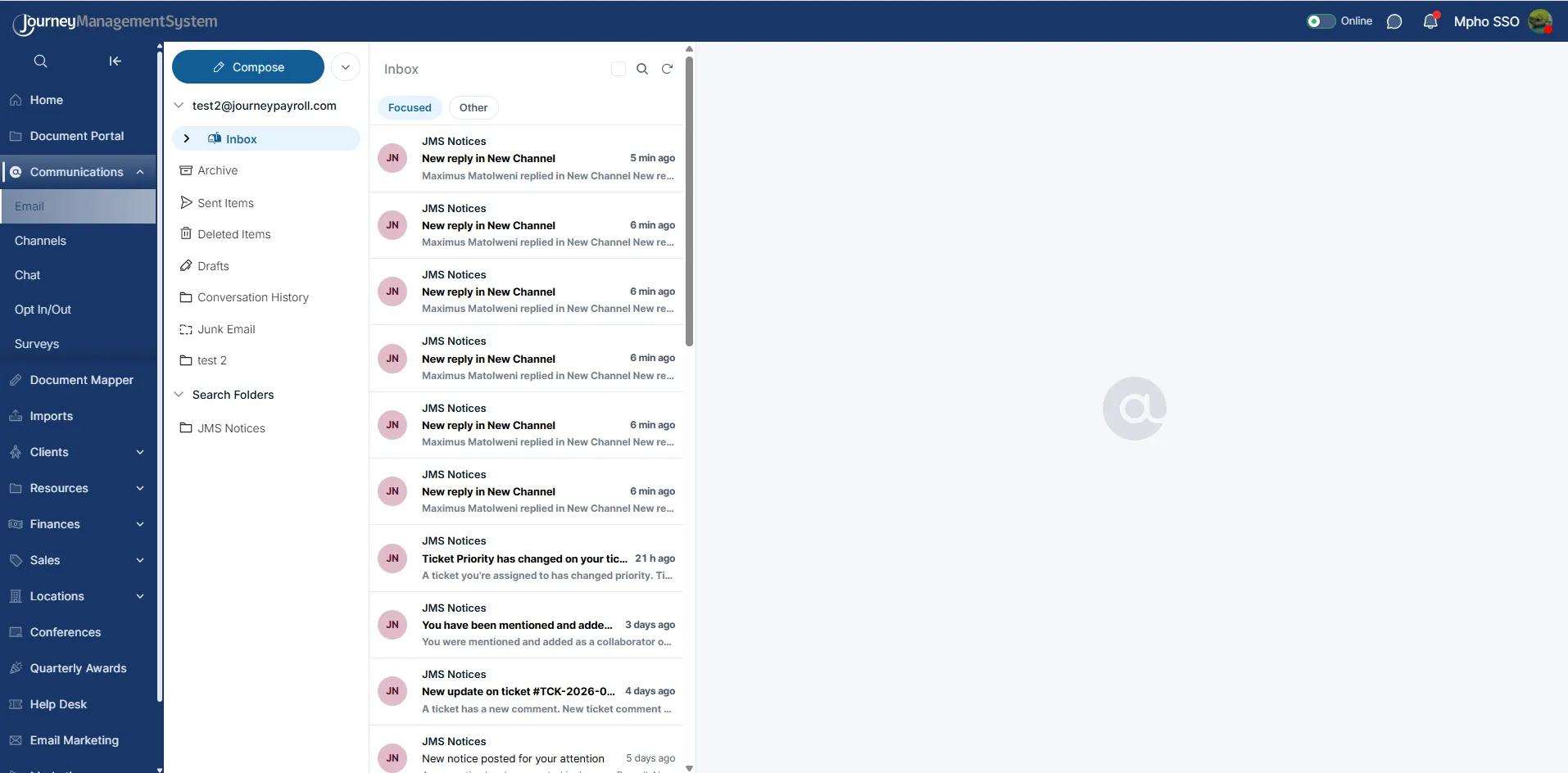
The inbox shows mailbox folders, the message list, and a reading pane for the selected email.
Mailbox Layout
Section titled “Mailbox Layout”The left mailbox panel shows the connected email account and its folders.
Common folders include:
| Folder | Description |
|---|---|
| Inbox | New and received messages. |
| Archive | Messages moved out of the inbox for storage. |
| Sent Items | Messages sent from the mailbox. |
| Deleted Items | Messages that have been deleted. |
| Drafts | Messages started but not sent. |
| Conversation History | Stored conversation records, where available. |
| Junk Email | Messages treated as junk or spam. |
| Search Folders | Saved filtered views of messages. |
Select a folder to load the messages in that folder. If a folder has no messages, the message list displays No Results.
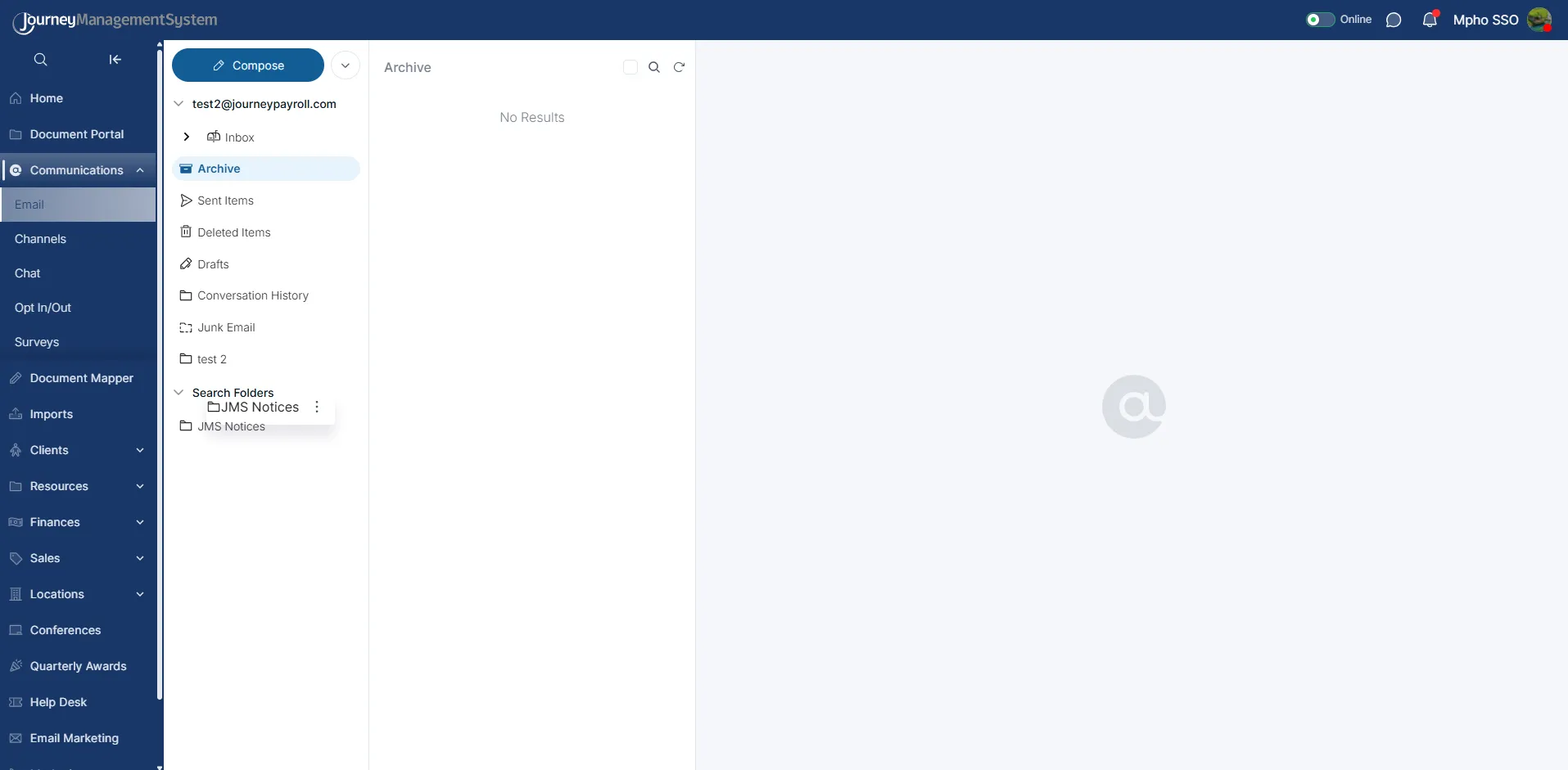
Folders can be opened from the mailbox panel. Empty folders show a No Results state.
Compose and Meeting Actions
Section titled “Compose and Meeting Actions”Use Compose to start a new email message.
The dropdown beside Compose opens additional creation options, such as New meeting.
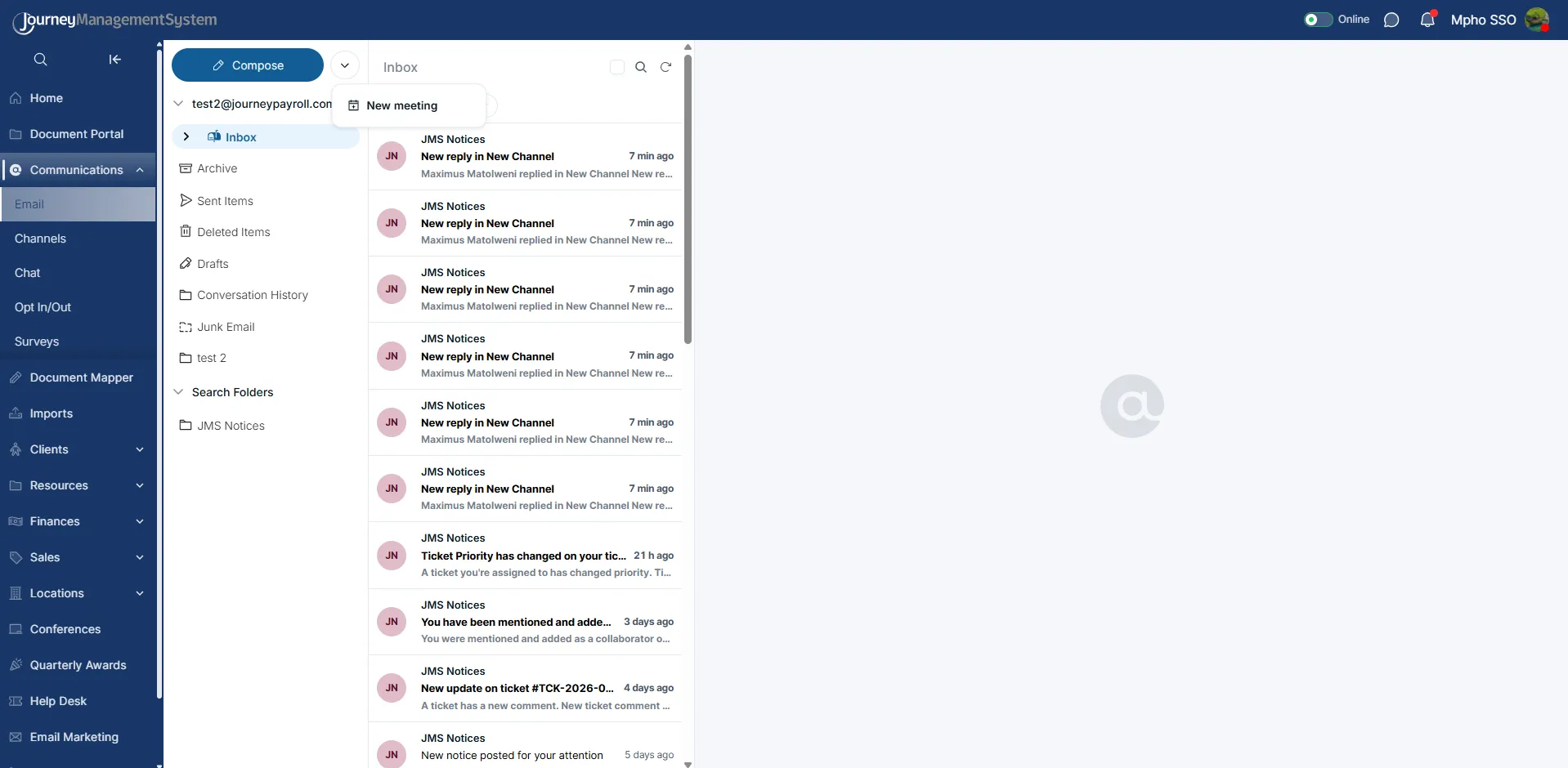
The compose dropdown provides quick access to meeting creation.
Inbox Tabs
Section titled “Inbox Tabs”The inbox can be split into:
- Focused - Important or primary messages.
- Other - Messages that are separated from the focused view.
Use these tabs to switch between the main inbox views without leaving the mailbox.
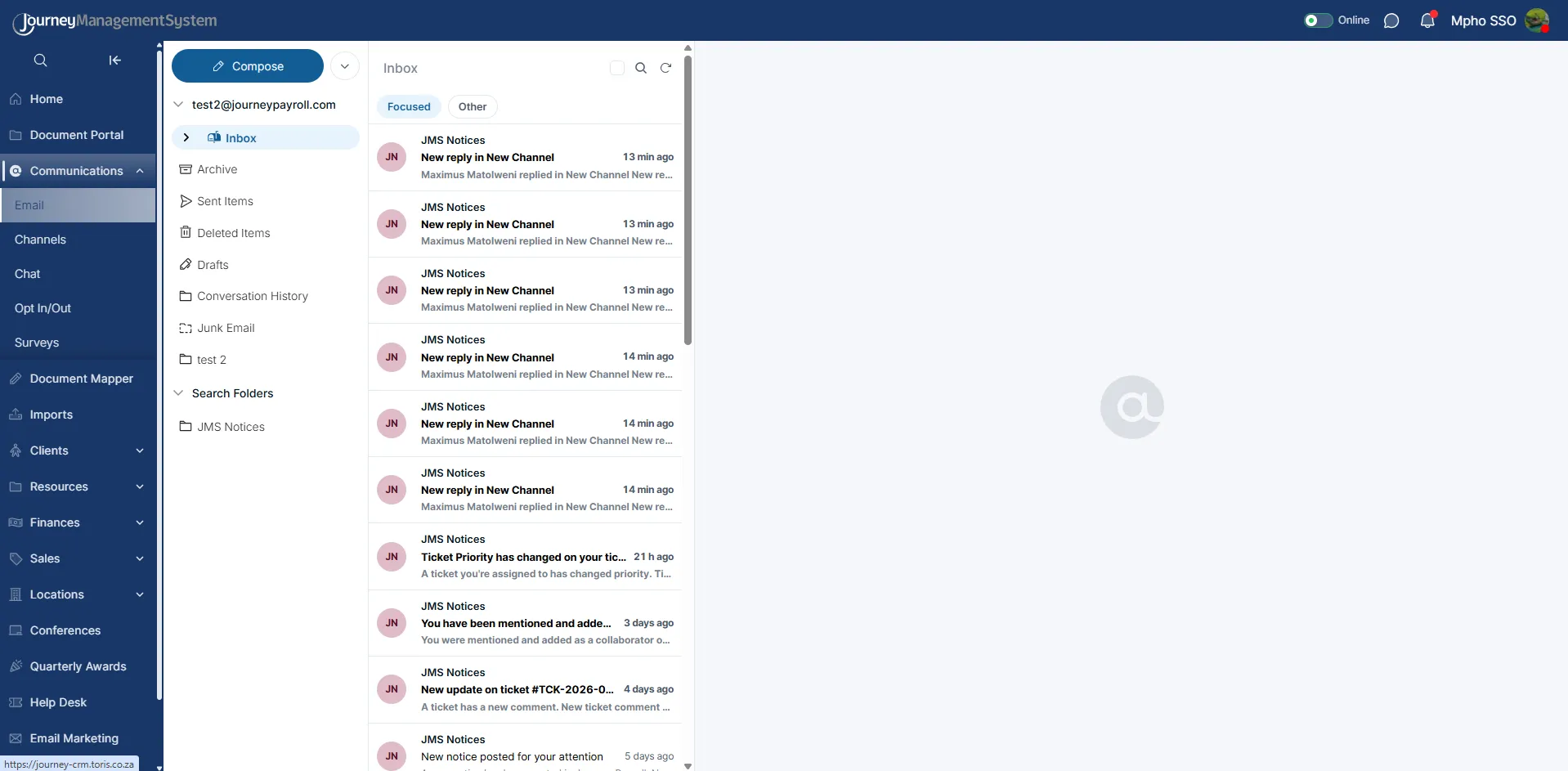
Focused and Other tabs help separate priority messages from the rest of the inbox.
Message List
Section titled “Message List”The message list shows each email as a row with:
- Sender or source.
- Subject.
- Message preview.
- Time or date received.
- Sender initials or avatar.
- Selection checkbox, when selection mode is active.
- Flag status, when a message has been flagged.
Select a message to open it in the reading pane.
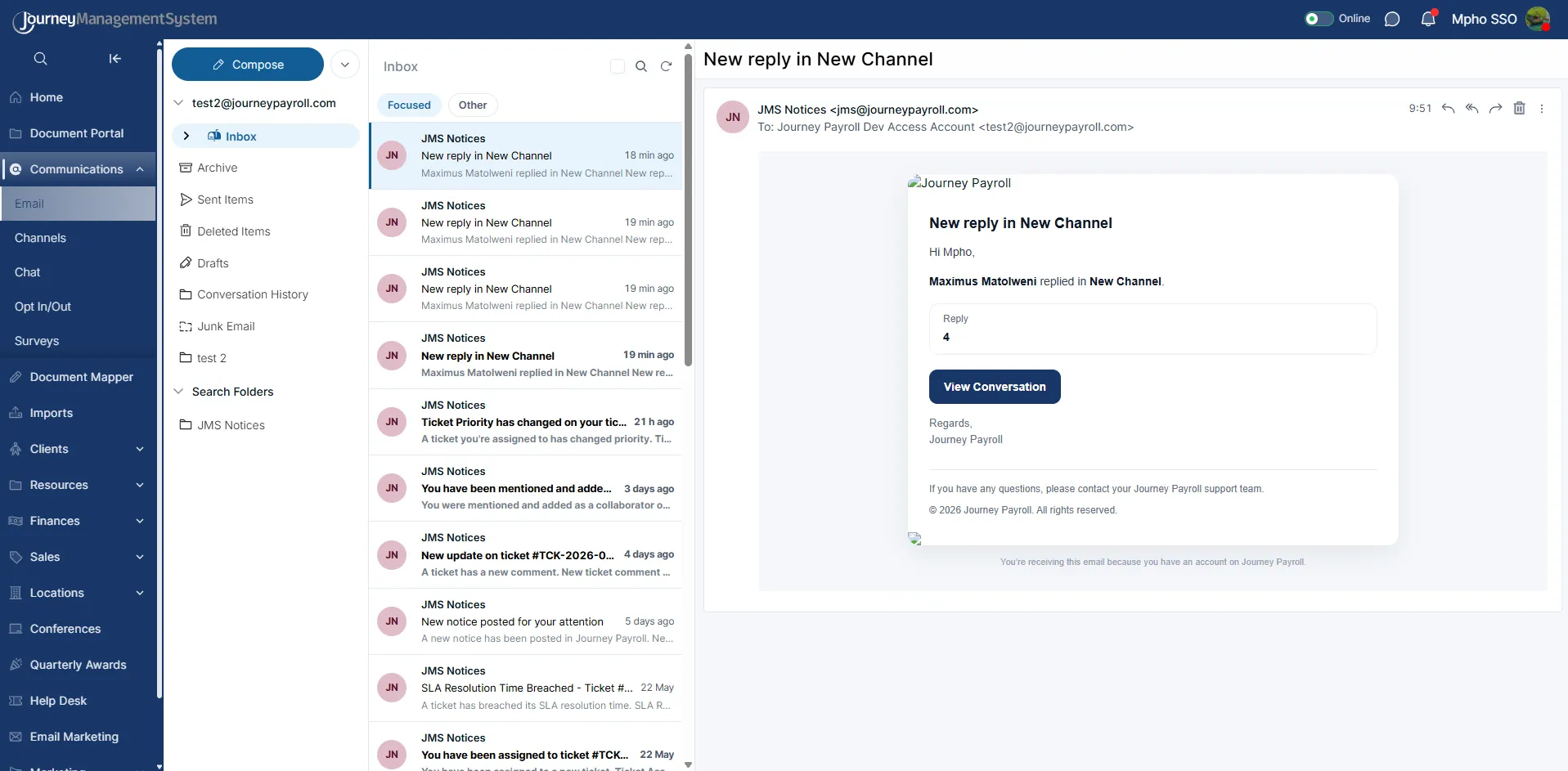
Selecting a message opens the full email on the right side of the workspace.
Reading an Email
Section titled “Reading an Email”The reading pane shows the selected email’s full details.
This area includes:
- Subject line.
- Sender name and email address.
- Recipient details.
- Message time.
- Reply and forward actions.
- Delete action.
- More actions menu.
- Full email body.
Some JMS notification emails include a call-to-action button, such as View Conversation, so users can move from the email into the related JMS record.
JMS notification emails can include buttons that link back to the related conversation or record.
Email Actions
Section titled “Email Actions”Use the action icons at the top of the reading pane to respond to or manage the selected message.
Common actions include:
| Action | Description |
|---|---|
| Reply | Respond to the sender. |
| Reply all | Respond to all recipients. |
| Forward | Send the message to another recipient. |
| Delete | Move the message to Deleted Items. |
| More actions | Open additional email options. |
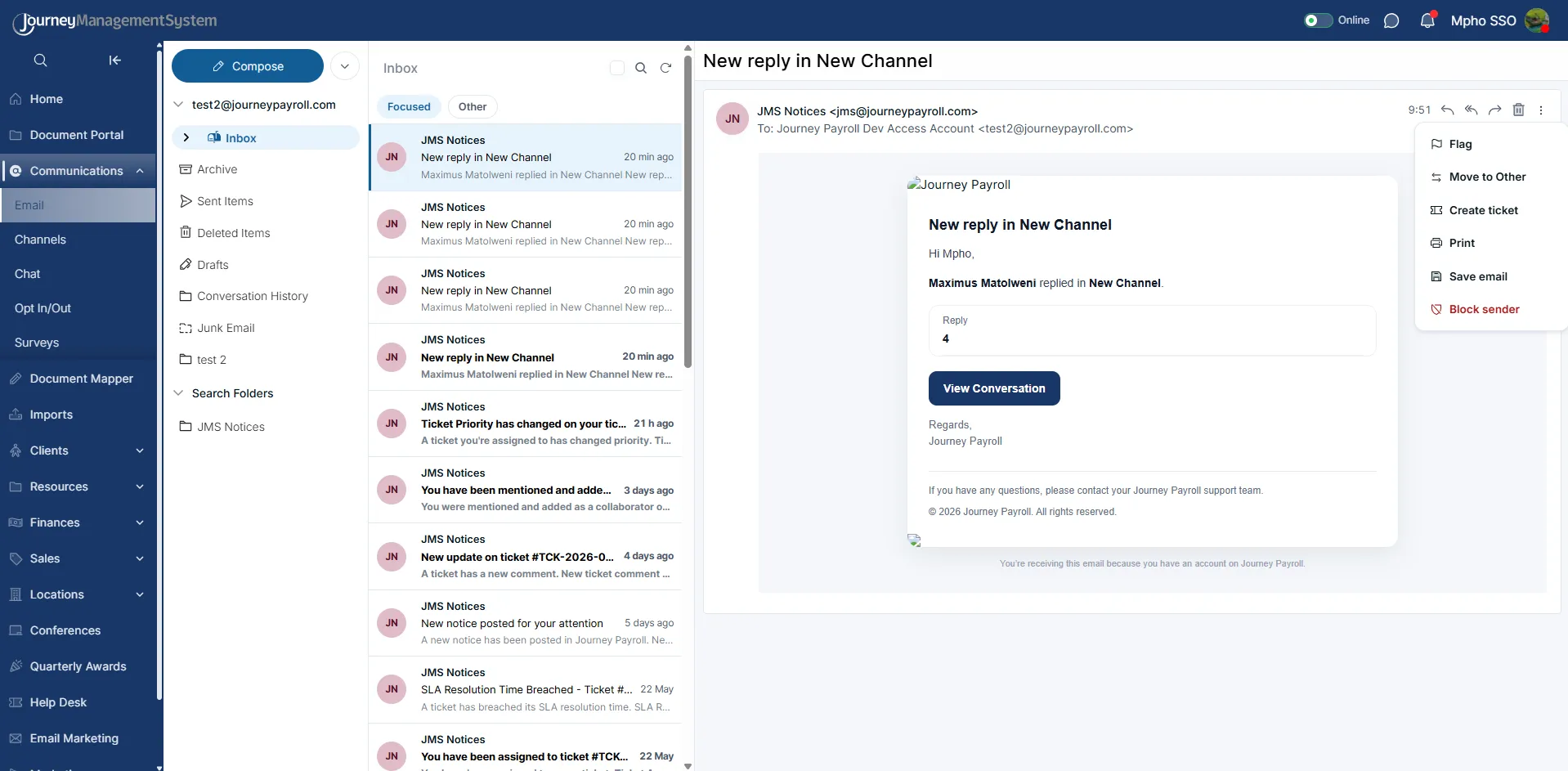
The More actions menu gives access to additional message options.
The More actions menu may include:
- Flag
- Move to Other
- Create ticket
- Save email
- Block sender
Use Create ticket when an email should be turned into a Help Desk ticket.
Deleting a Message
Section titled “Deleting a Message”When deleting an email from the reading pane, JMS asks for confirmation before the message is deleted.
Select OK to confirm the deletion or Cancel to keep the message.
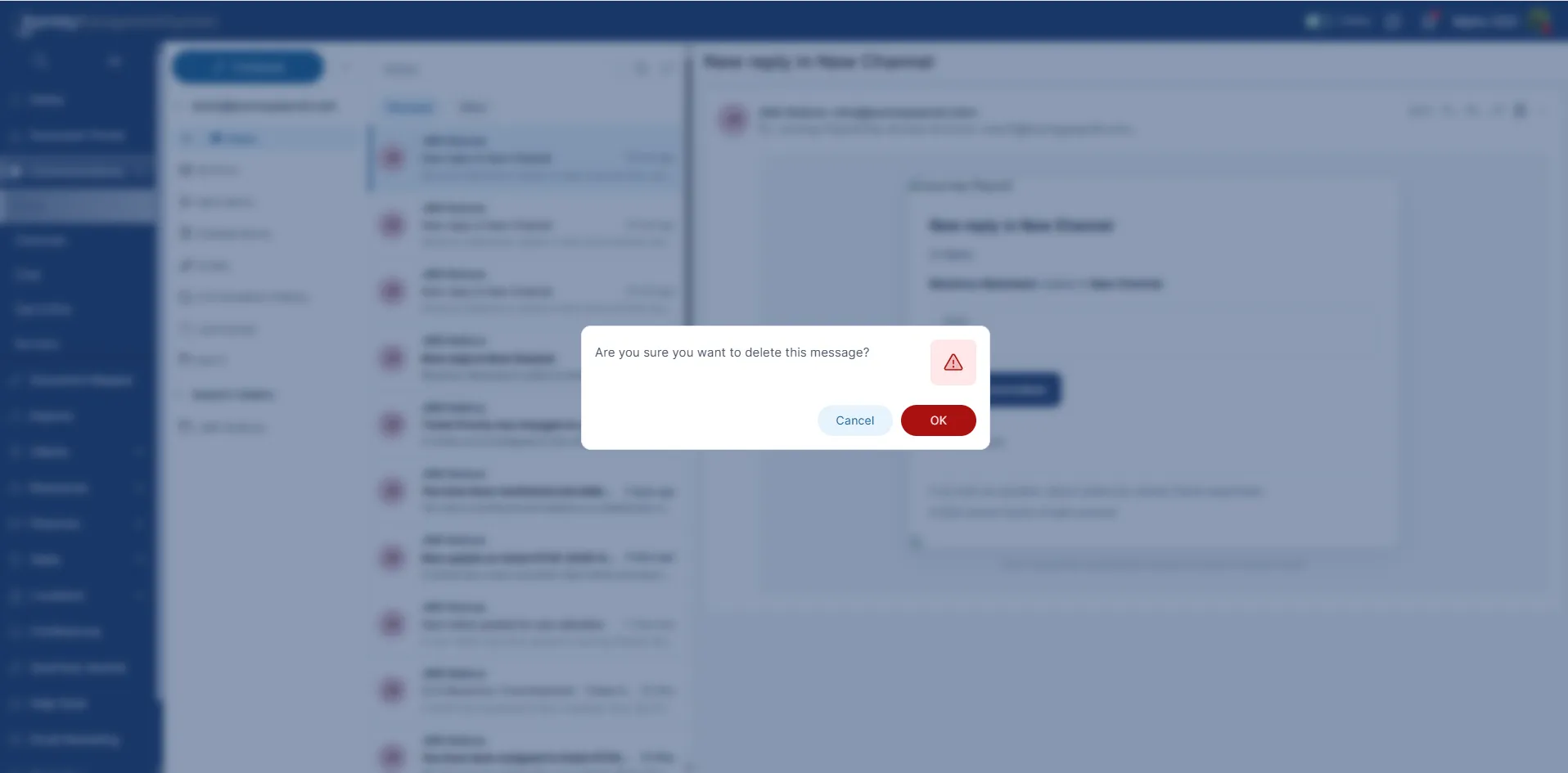
Delete confirmation helps prevent accidental message removal.
Selecting Messages
Section titled “Selecting Messages”Use the checkbox at the top of the message list to select messages in bulk. You can also select individual message rows.
When messages are selected, the bulk action toolbar appears above the message list.
Bulk actions include:
- Mark read
- Mark unread
- Flag
- Unflag
- Move to Other
- Delete
- Clear
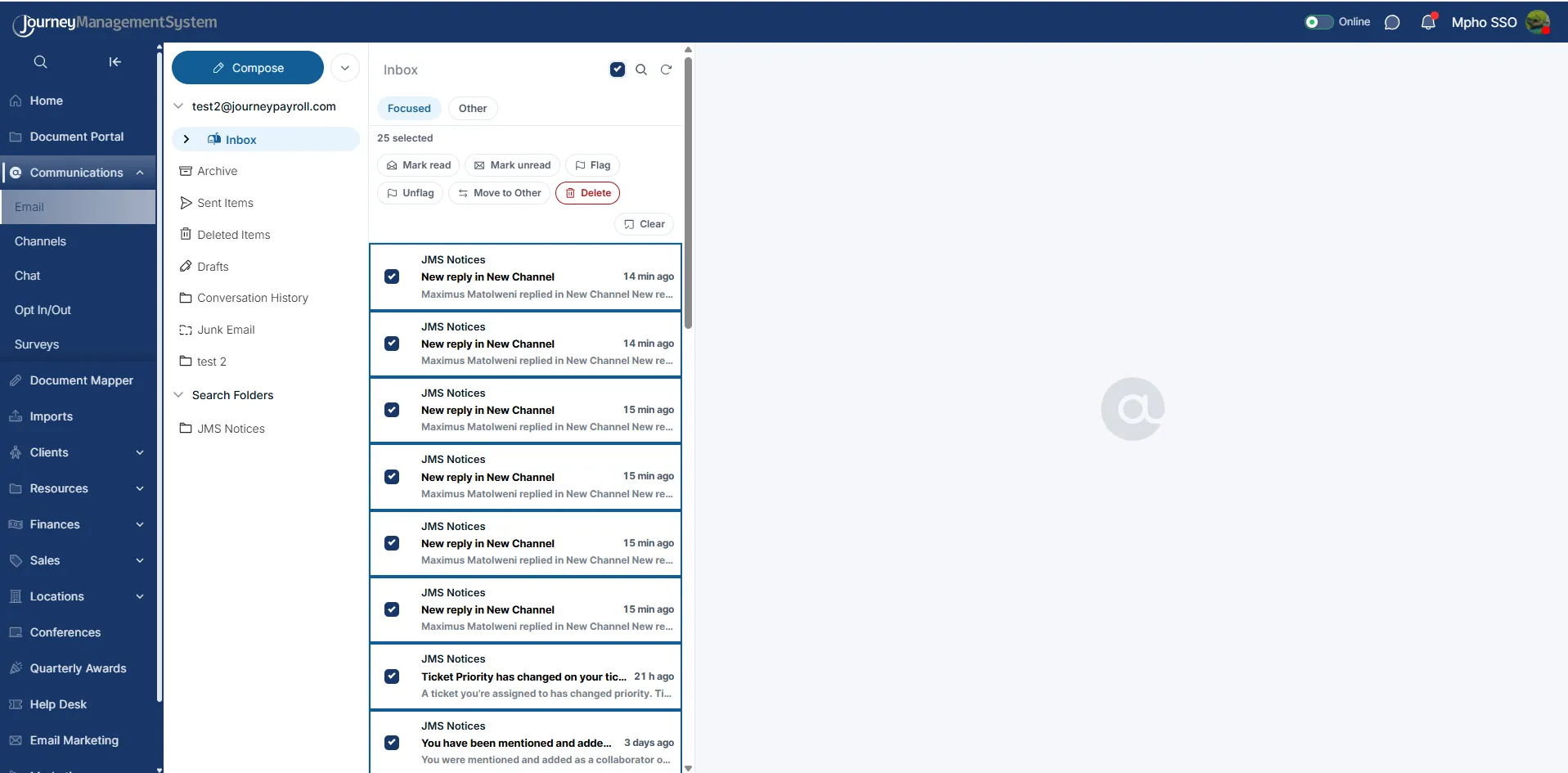
Bulk selection lets users update several messages at once.
When only one message is selected, the toolbar stays available and applies actions to that selected email.
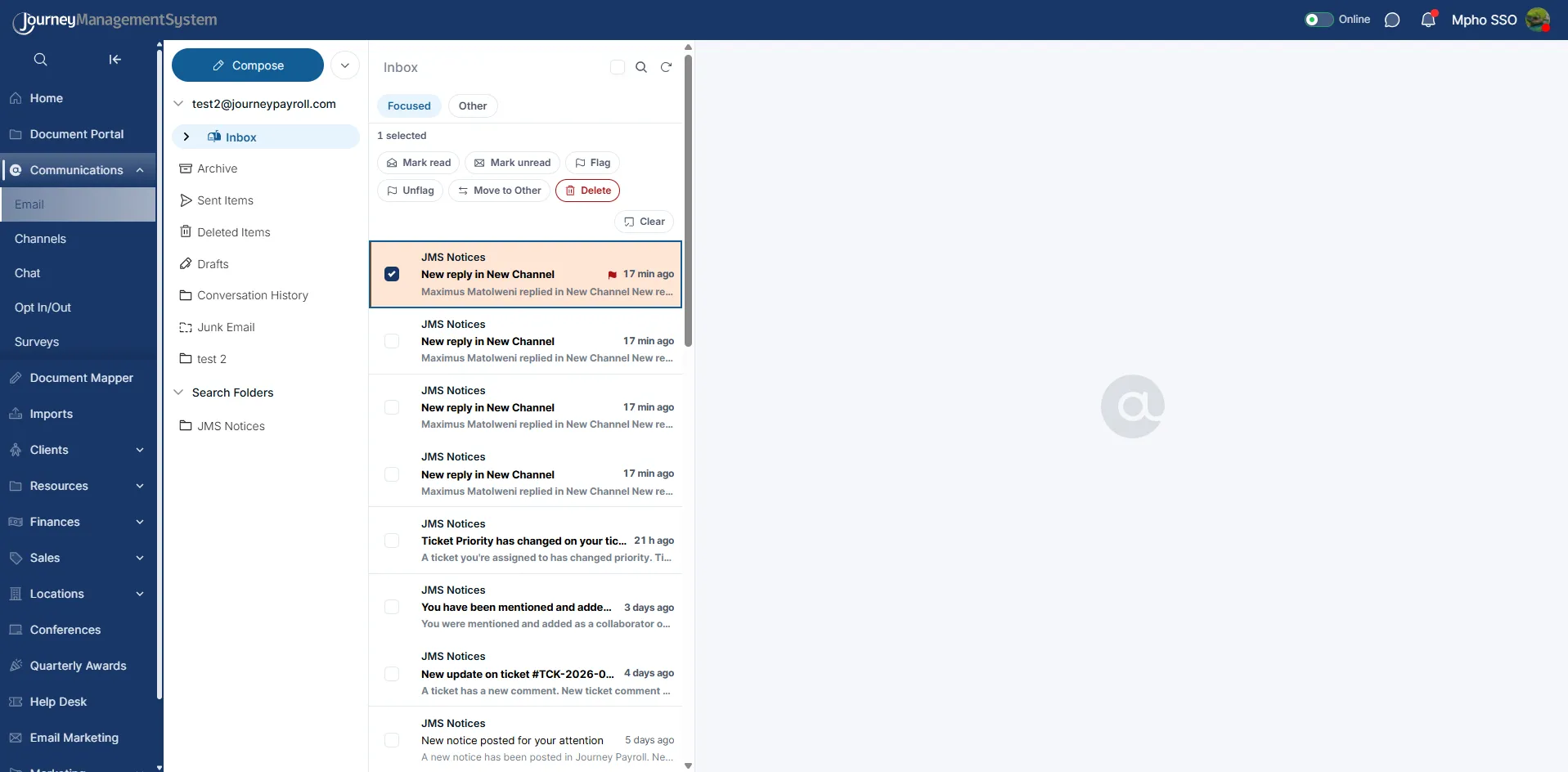
A selected row can be flagged, moved, marked read or unread, or deleted.
Folder and Mailbox Menus
Section titled “Folder and Mailbox Menus”The mailbox account menu provides mailbox-level actions.
Options may include:
- New Folder
- Add Shared Mailbox
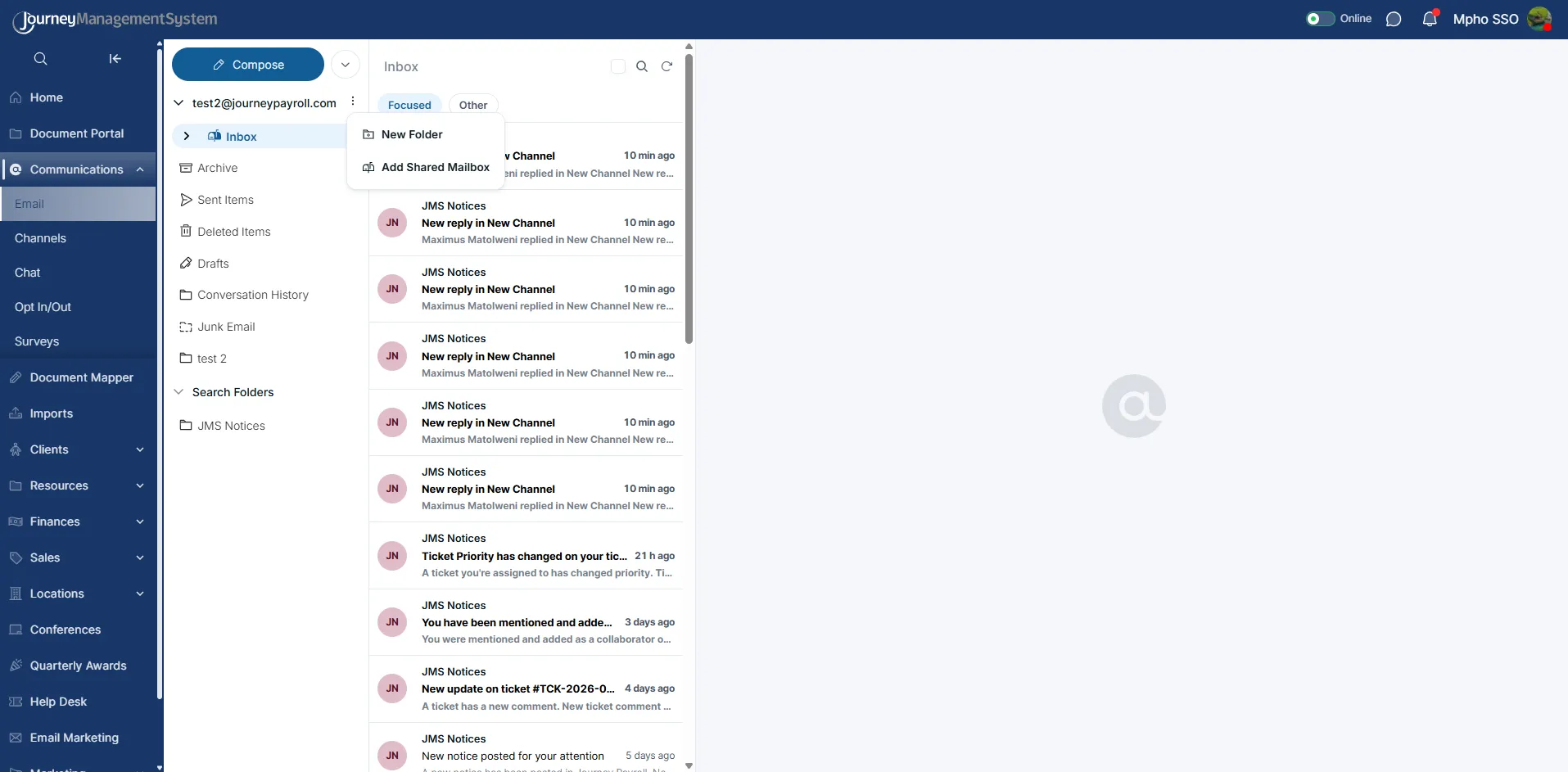
Use the mailbox menu to create folders or add a shared mailbox.
Search folders also have their own menu for creating a saved filtered folder.
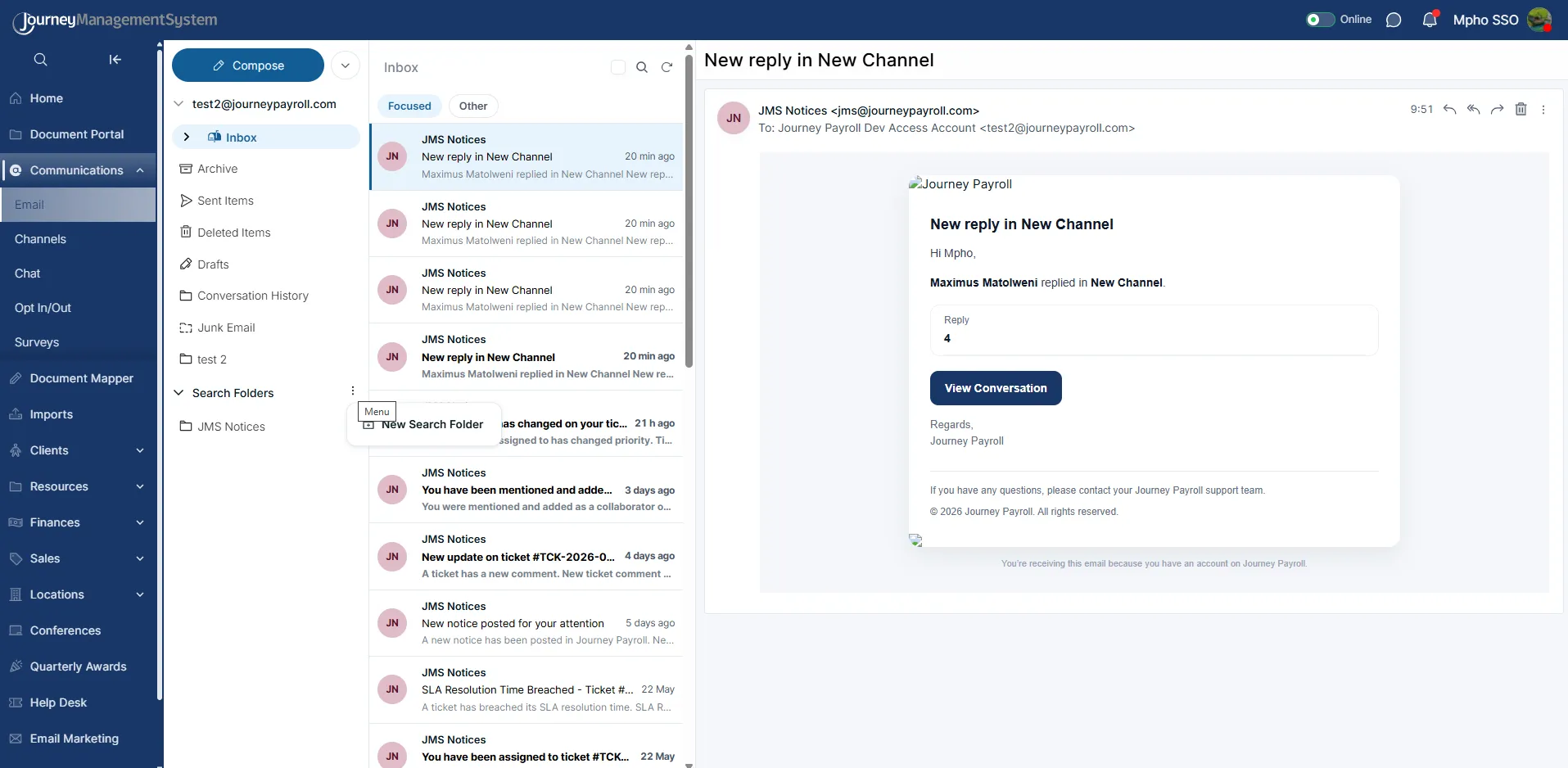
The Search Folders menu is used to create a new saved message filter.
Search Folders
Section titled “Search Folders”Search folders are saved filtered views of mailbox messages. They help users quickly return to a set of messages that match specific rules.
To create a search folder:
- Open the Search Folders menu.
- Select New Search Folder.
- Enter a search folder name.
- Choose one or more source folders.
- Add at least one filter.
- Select Create search folder.
Available filters include:
- From email
- Subject contains
- Unread only
- Has attachments
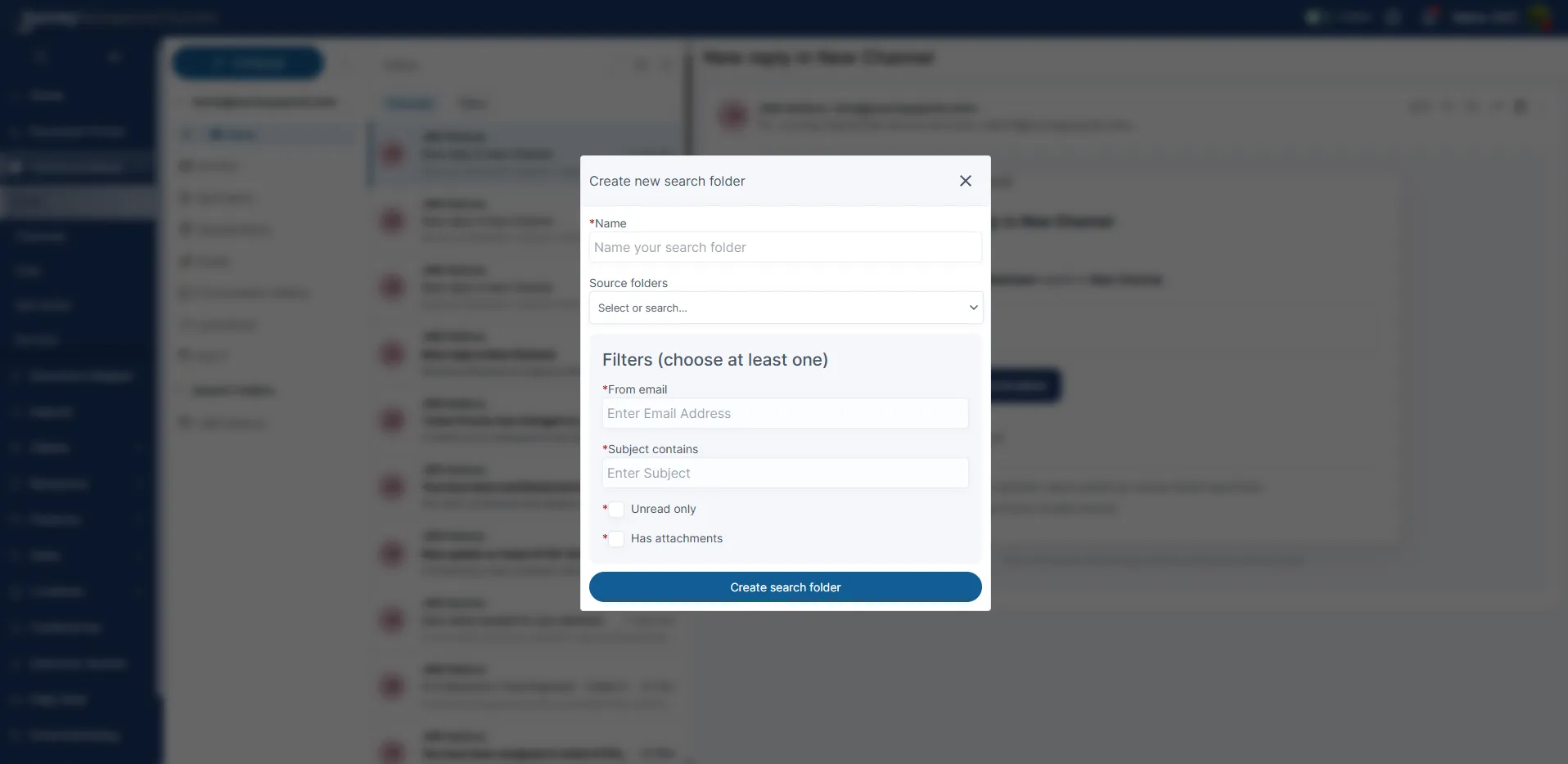
A search folder needs a name and at least one filter before it can be created.
Use Source folders to decide which mailbox folders the search folder should include.
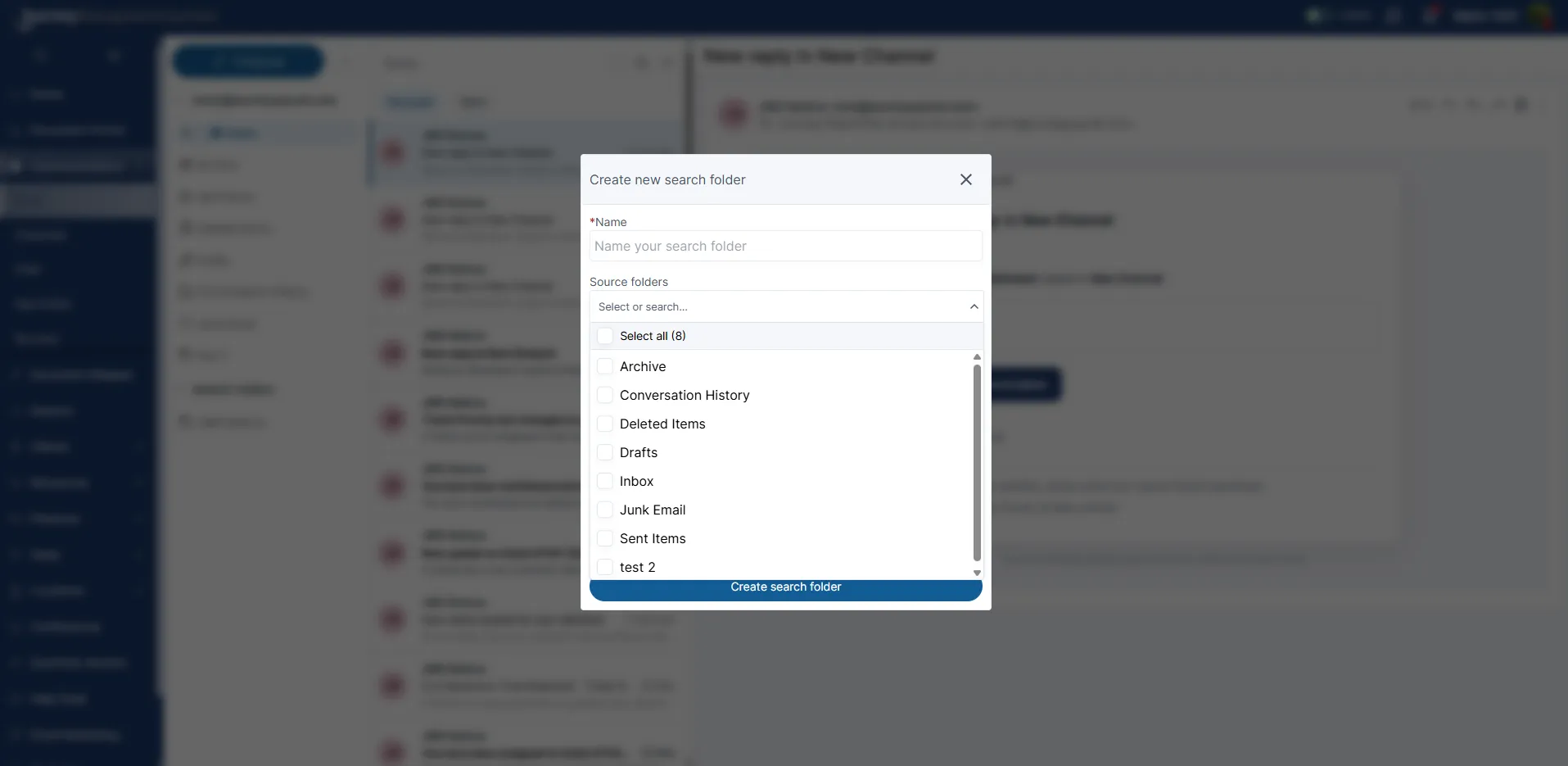
Source folders control where the saved search looks for matching messages.
Managing Search Folders
Section titled “Managing Search Folders”After a search folder has been created, it appears under Search Folders in the mailbox panel.
Open the menu beside a search folder to manage it.
Available actions may include:
- Edit
- Rename
- Delete
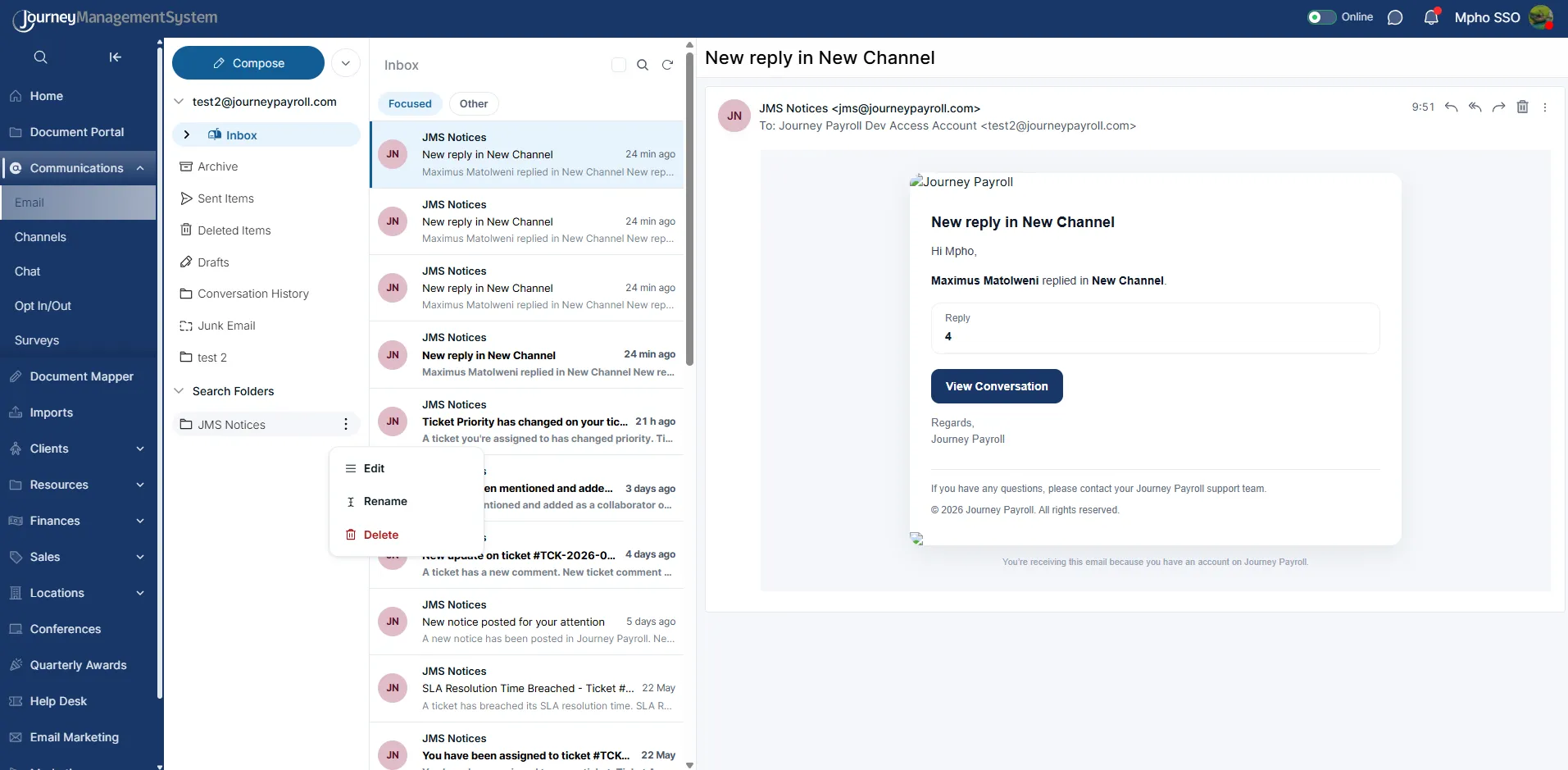
Search folders can be edited, renamed, or deleted from their folder menu.
Editing a Search Folder
Section titled “Editing a Search Folder”Use Edit to update the search folder’s name, source folders, or filters.
The edit form shows the current filter and lets the user adjust the search folder configuration.
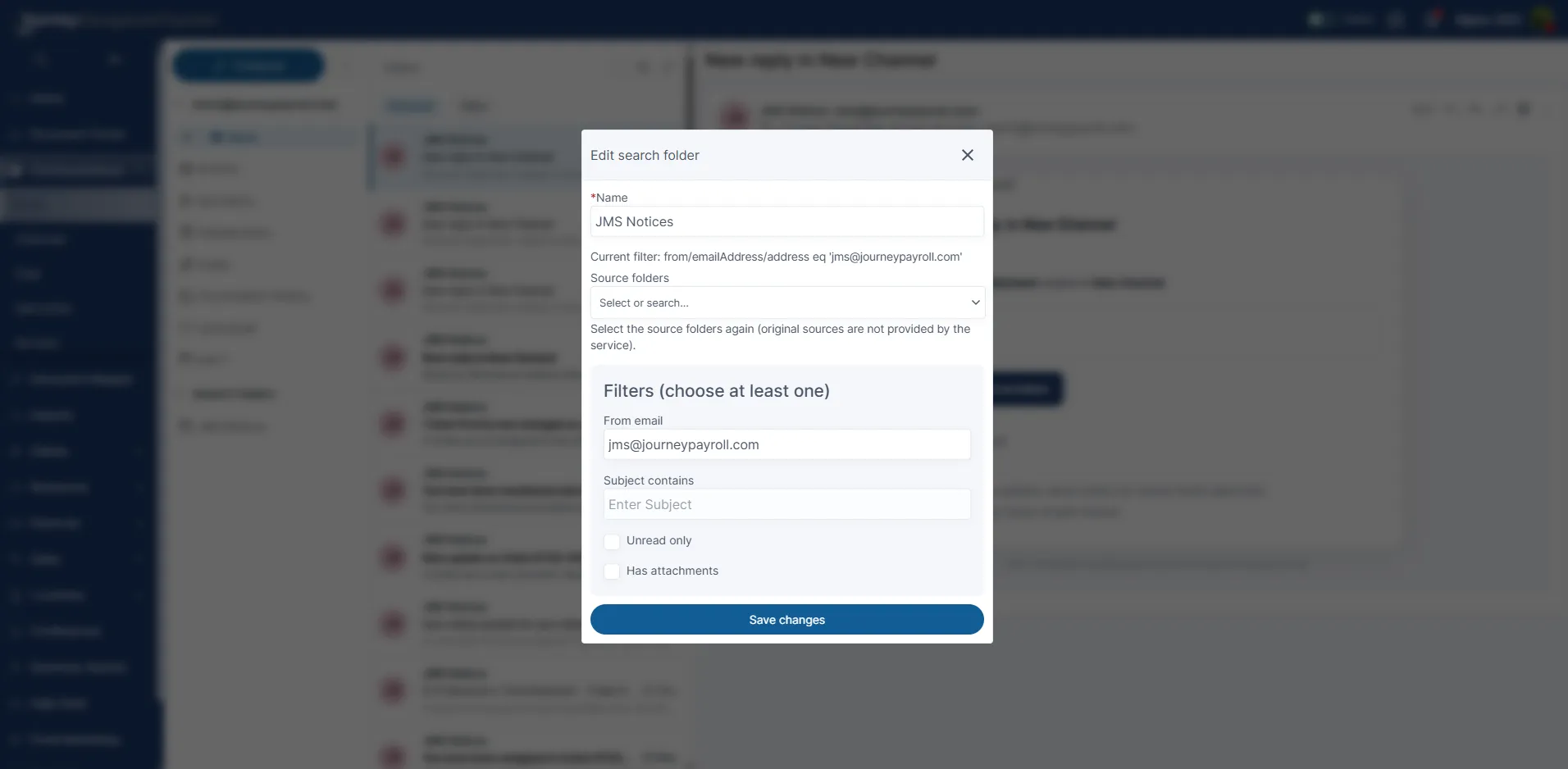
Editing a search folder changes the saved filter configuration.
Renaming a Search Folder
Section titled “Renaming a Search Folder”Use Rename when only the search folder label needs to change.
Renaming a search folder does not change the folder’s filters or source folders.
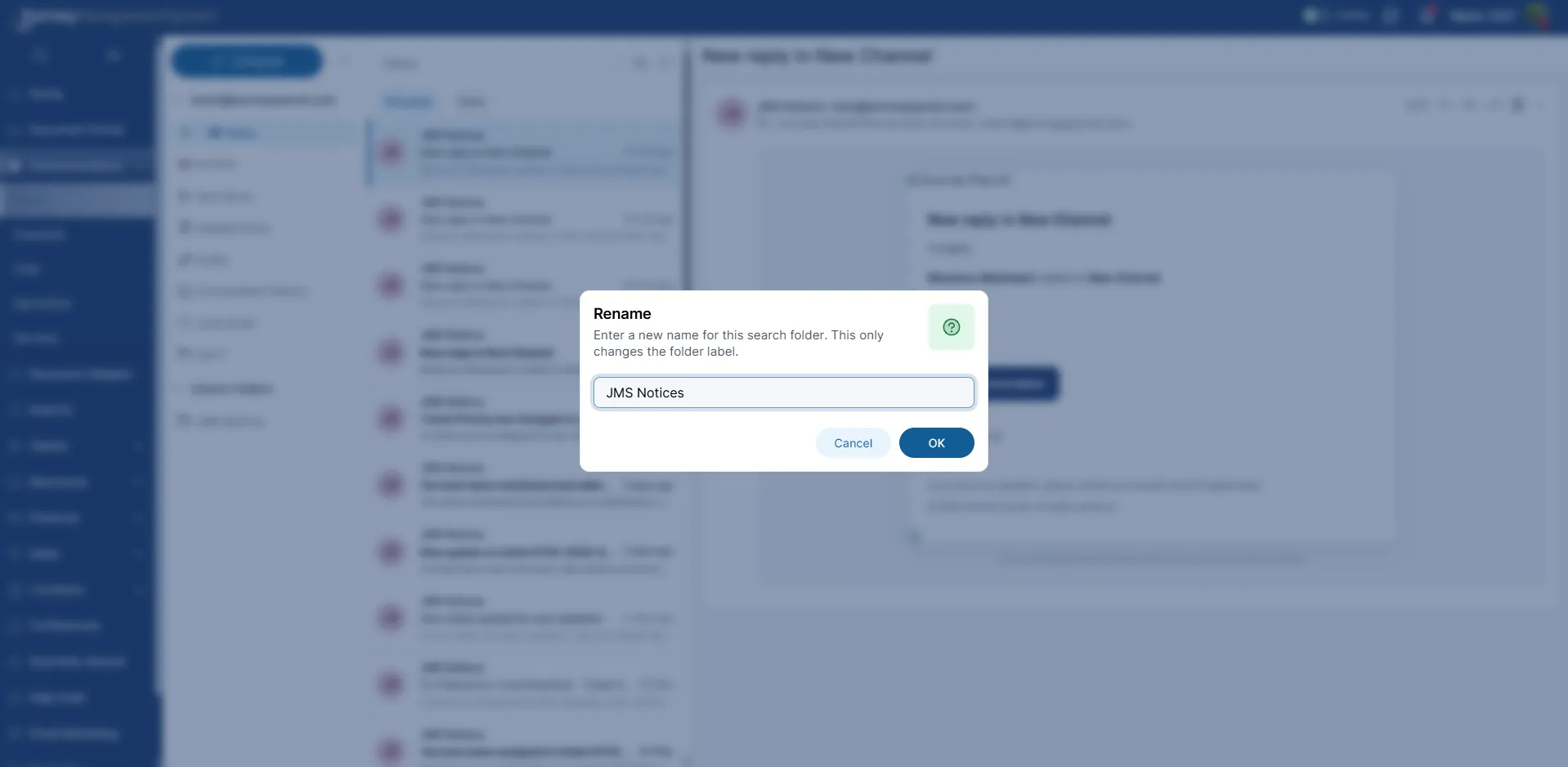
Rename changes the search folder label only.
Deleting a Search Folder
Section titled “Deleting a Search Folder”Use Delete to remove a saved search folder and its configuration.
This does not delete any emails. It only removes the saved filtered view.
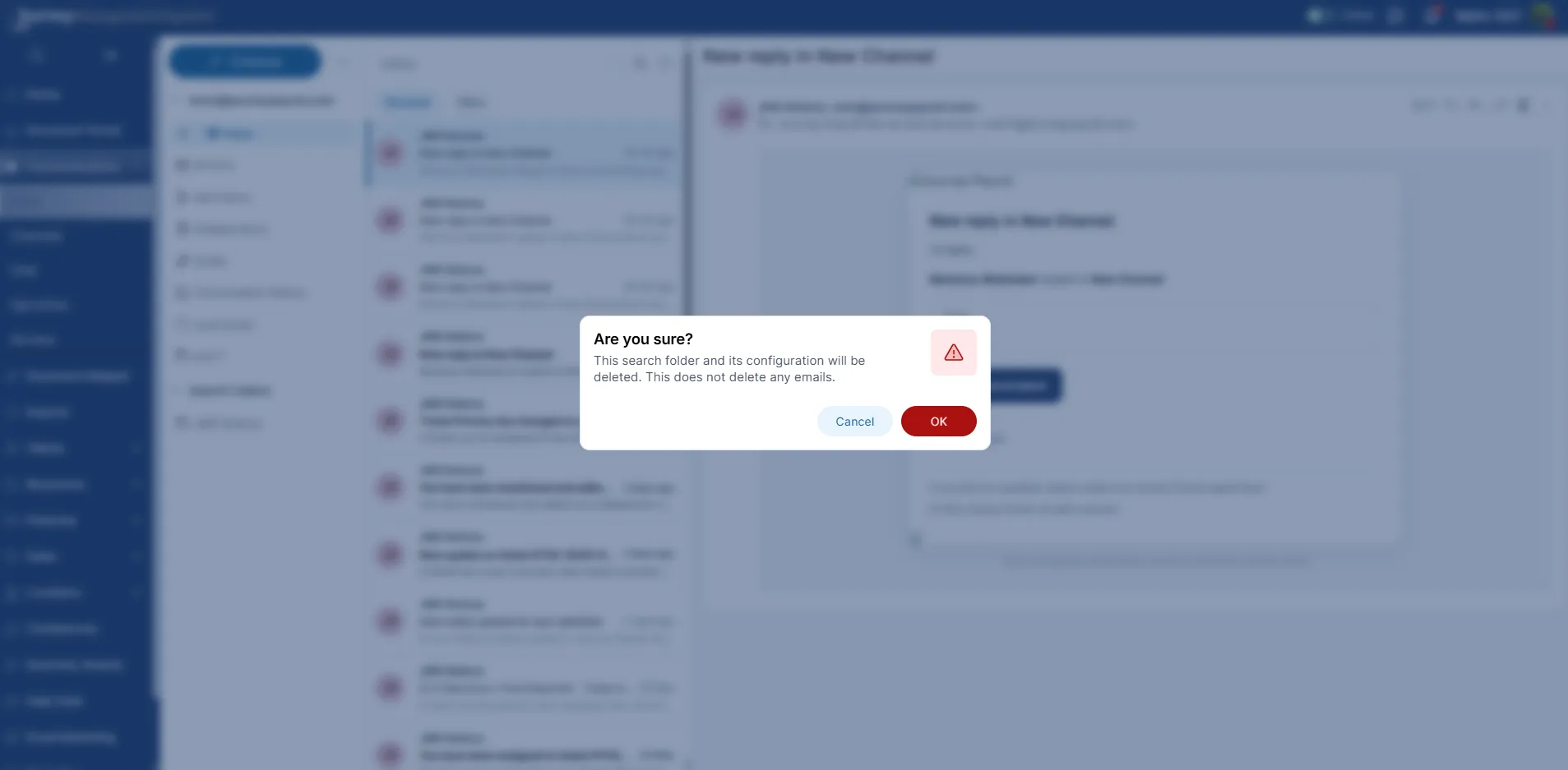
Deleting a search folder removes the saved filter, not the emails themselves.
Recommended Workflow
Section titled “Recommended Workflow”- Open Communications > Email.
- Use Inbox, Focused, and Other to review new messages.
- Select a message to read it in the reading pane.
- Use reply, forward, delete, or the More actions menu when action is needed.
- Use bulk selection to clean up or organise multiple messages.
- Create search folders for messages you need to monitor regularly.
- Review and update search folders as mailbox needs change.
Best Practice
Section titled “Best Practice”Use search folders for recurring work queues, such as messages from JMS Notices, unread messages, or emails with attachments. This keeps the inbox easier to scan while still making important messages quick to find.