
Segments
The Segments page is used to create and manage target audiences for marketing campaigns inside JMS.
A segment is a saved group of people or records that match specific rules. These segments can then be used when sending email campaigns or other marketing messages.
Use this page when you want to send a campaign to a specific group instead of sending it to everyone.
Segments Overview
Section titled “Segments Overview”At the top of the page, you will see summary cards that give a quick view of your current audience setup.
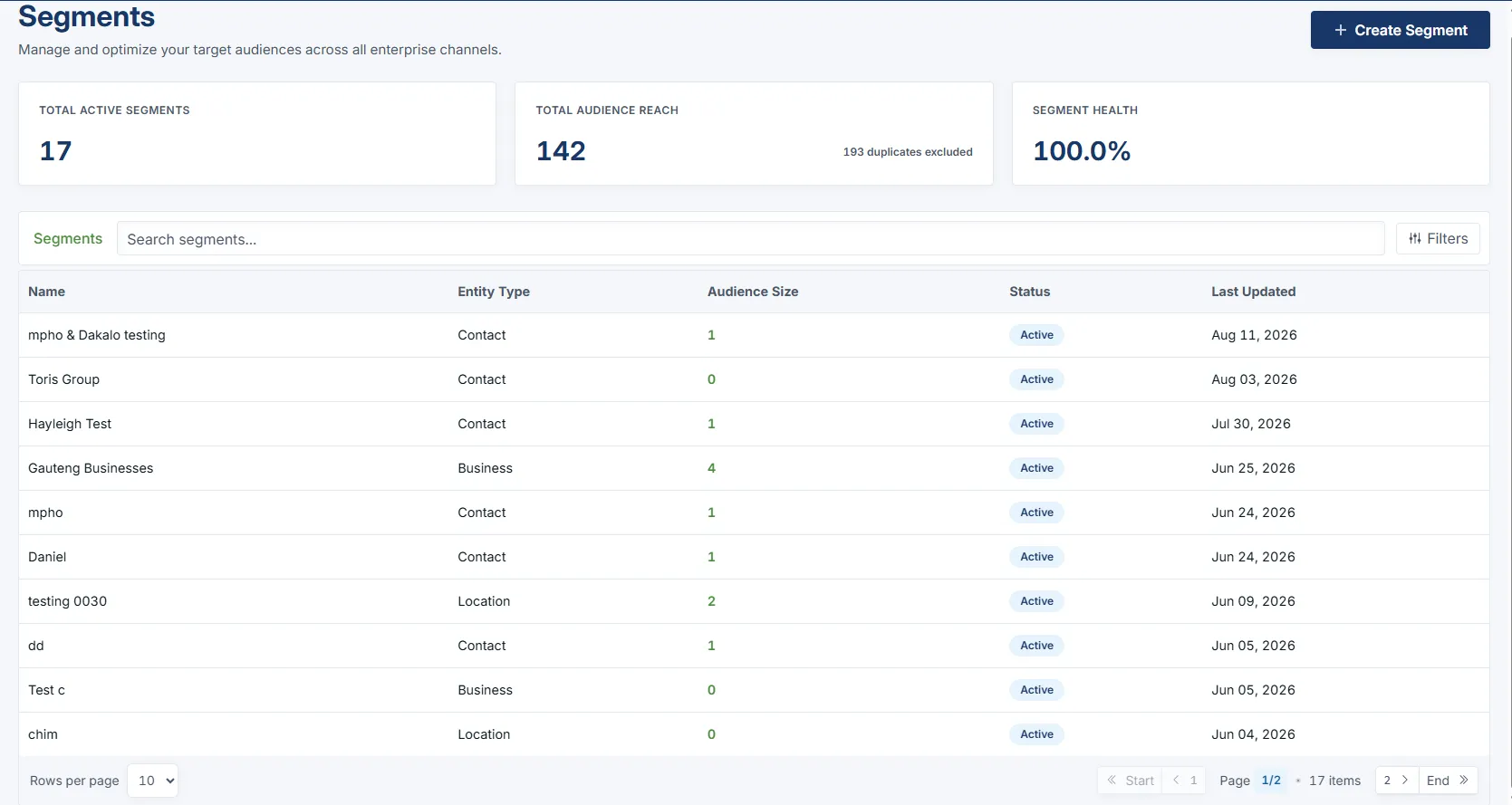
The summary cards include:
- Total Active Segments: Shows how many active segments are currently saved.
- Total Audience Reach: Shows the total number of people or records included across the segments.
- Duplicates Excluded: Shows how many duplicate records were removed from the audience reach.
- Segment Health: Shows the quality or health percentage of the current segments.
These cards help users quickly understand the size and quality of the available marketing audiences.
Segments Table
Section titled “Segments Table”Below the summary cards is the Segments table.
This table lists the segments that have already been created.
The table includes:
- Name: The name of the segment.
- Entity Type: The type of record used for the segment, such as Contact, Business, Partner, or Location.
- Audience Size: The number of records included in the segment.
- Status: Shows whether the segment is active, draft, or archived.
- Last Updated: Shows when the segment was last changed.
Use this table to review existing segments and confirm which audiences are ready for campaigns.
Searching for a Segment
Section titled “Searching for a Segment”Use the Search segments field to quickly find a specific segment.
This is useful when there are many saved segments and you need to find one by name.
Filtering Segments
Section titled “Filtering Segments”Click Filters to narrow down the segment list.
The filters include:
- Status
- Entity Type
Status filter
Section titled “Status filter”The Status filter lets you view segments by their current state.
Options include:
- All Options
- Active
- Draft
- Archived
Use this filter when you only want to see segments that are ready to use, still being prepared, or already archived.
Entity Type filter
Section titled “Entity Type filter”The Entity Type filter lets you view segments based on the type of record they target.
Options include:
- All Options
- Contact
- Business
- Partner
- Location
Use this filter when you want to find segments built for a specific type of audience.
Creating a New Segment
Section titled “Creating a New Segment”To create a new segment, click Create Segment in the top-right corner.
This opens the Create New Segment page.
On this page, users define the segment name, description, entity type, and matching rules.
Segment Details
Section titled “Segment Details”The first section is used to add the basic segment information.
Users need to enter:
- Segment Name
- Description
The segment name should be clear and easy to understand. This helps other users know what the segment is for when selecting it in campaigns.
The description can be used to explain the purpose of the segment.
Entity Type
Section titled “Entity Type”The Entity Type section controls what kind of records the segment will use.
Available entity types include:
- Contacts: Individual people and audience members.
- Businesses: Companies, accounts, and organizations.
- Partners: Partner networks and external collaborators.
- Locations: Geographic areas, branches, and service locations.
Choose the entity type that matches the audience you want to build.
Match Criteria
Section titled “Match Criteria”The Match Criteria section controls how the segment rules work.
Users can choose:
- Match All
- Match Any
Match All
Section titled “Match All”Use Match All when every rule must be true before a record is included in the segment.
For example, a contact must match the selected location and the selected contact type.
Match Any
Section titled “Match Any”Use Match Any when only one of the rules needs to be true before a record is included in the segment.
For example, a contact can match either the selected location or the selected contact type.
Filter Rules
Section titled “Filter Rules”Filter rules decide which records are included in the segment.
Each rule includes:
- Field
- Operator
- Value
For example, a rule can check whether a first name equals a specific value.
Click Add Rule to add more rules to the segment.
Use the delete icon to remove a rule that is no longer needed.
Criteria Preview
Section titled “Criteria Preview”The Criteria Preview panel shows records that currently match the segment rules.
This helps users confirm that the segment is pulling the correct audience before saving it.
The preview can show:
- Matched audience count
- Contact or record name
- Email address
- Entity type
Users can also search inside the preview list by name or email.
Saving a Segment
Section titled “Saving a Segment”After the segment details and rules are complete, click Save Segment.
Use Cancel if you do not want to save the segment.
Once saved, the segment will appear in the Segments table and can be used for marketing campaigns.