
Getting Started
Homepage overview
Section titled “Homepage overview”On this homepage, users will be able to learn about the three main homepage views in JMS:
- Admin view: for users who need to see activity across all franchises.
- Franchise Owner view: for users who need to see information for their specific franchise.
- Non-Sales user view: for users whose homepage focuses mainly on alerts and important system updates.
Each view shows different information based on the user’s role and permissions. This guide explains what each user type can see on the homepage, how alerts work, and how users can open related records such as tickets or business comments directly from the alerts panel.
Admin Homepage View
Section titled “Admin Homepage View”The Admin homepage view gives admin users a broad overview of activity across JMS.
Admins can use this page to monitor business performance, review alerts, access communication tools, and open important system updates from one central place.
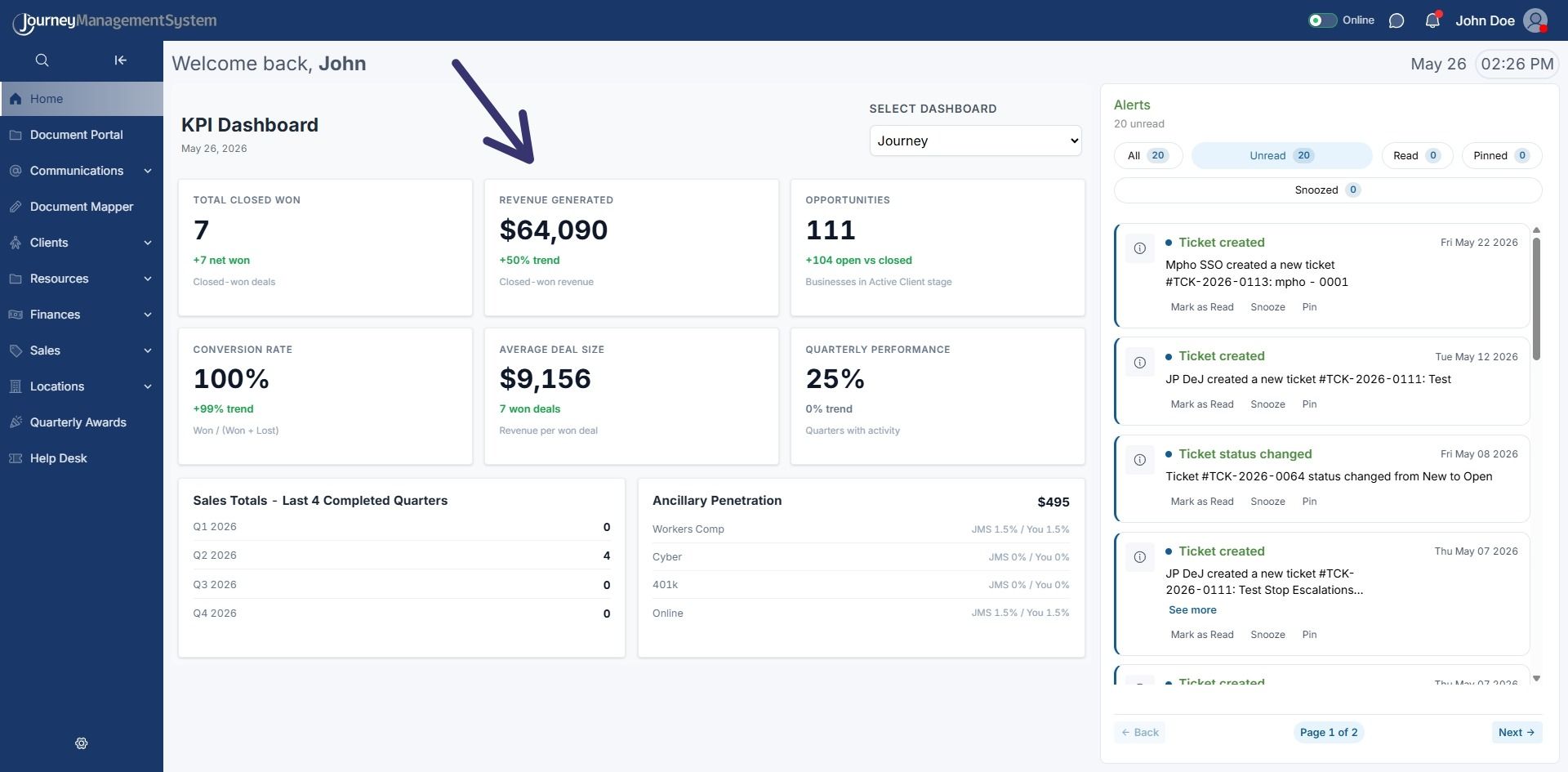
What admins see on the homepage
Section titled “What admins see on the homepage”The Admin homepage may include:
- A welcome message
- Current date and time
- Online or offline status
- Chat and notification icons
- User profile menu
- KPI Dashboard
- Dashboard selector
- Sales totals
- Ancillary penetration summary
- Alerts panel
Welcome message
Section titled “Welcome message”At the top of the homepage, JMS displays a welcome message with the user’s name.
For example:
Welcome back, John
This confirms that the user is signed in and viewing their own homepage.
Top bar
Section titled “Top bar”The top bar shows important session and account information.
This area may include:
-
Online or offline status
Shows whether the user is currently active in the system. -
Chat icon
Opens the JMS chat panel for quick communication. -
Notification icon
Shows when there are new updates or unread notifications. -
User name
Confirms which account is currently signed in. -
Profile icon
Opens account and system options. -
Current date and time
Helps users understand when they are reviewing activity, alerts, and updates.
The top bar stays visible so users can quickly access communication, notifications, and account options while working in JMS.
KPI Dashboard
Section titled “KPI Dashboard”The main section of the Admin homepage contains the KPI Dashboard.
This dashboard gives a quick summary of business performance across the selected dashboard view.
The KPI cards may include:
-
Total Closed Won
Shows the number of deals that were successfully closed. -
Revenue Generated
Shows the revenue linked to closed-won activity. -
Opportunities
Shows the number of active opportunities currently being tracked. -
Conversion Rate
Shows how many opportunities are converting into successful deals. -
Average Deal Size
Shows the average value of won deals. -
Quarterly Performance
Shows activity across the current quarter.
These cards help admins quickly understand overall performance without opening detailed reports.
Dashboard selector
Section titled “Dashboard selector”The Select Dashboard dropdown allows the admin user to choose which dashboard view they want to review.
For example, an admin may select:
Admin Journey
This is useful when admins need to review different business areas or compare information across available dashboards.
Sales totals summary
Section titled “Sales totals summary”The Sales Totals - Last 4 Completed Quarters section shows sales performance across the most recent completed quarters.
This helps admins see whether sales activity is increasing, decreasing, or remaining steady over time.
Ancillary penetration summary
Section titled “Ancillary penetration summary”The Ancillary Penetration section shows performance for additional service areas.
This may include:
- Workers Comp
- Cyber
- 401k
- Online
This section helps admins understand how additional services are being adopted across the business.
Alerts Panel
Section titled “Alerts Panel”The Alerts panel appears on the right side of the homepage.
This panel shows important system updates and items that may need attention.
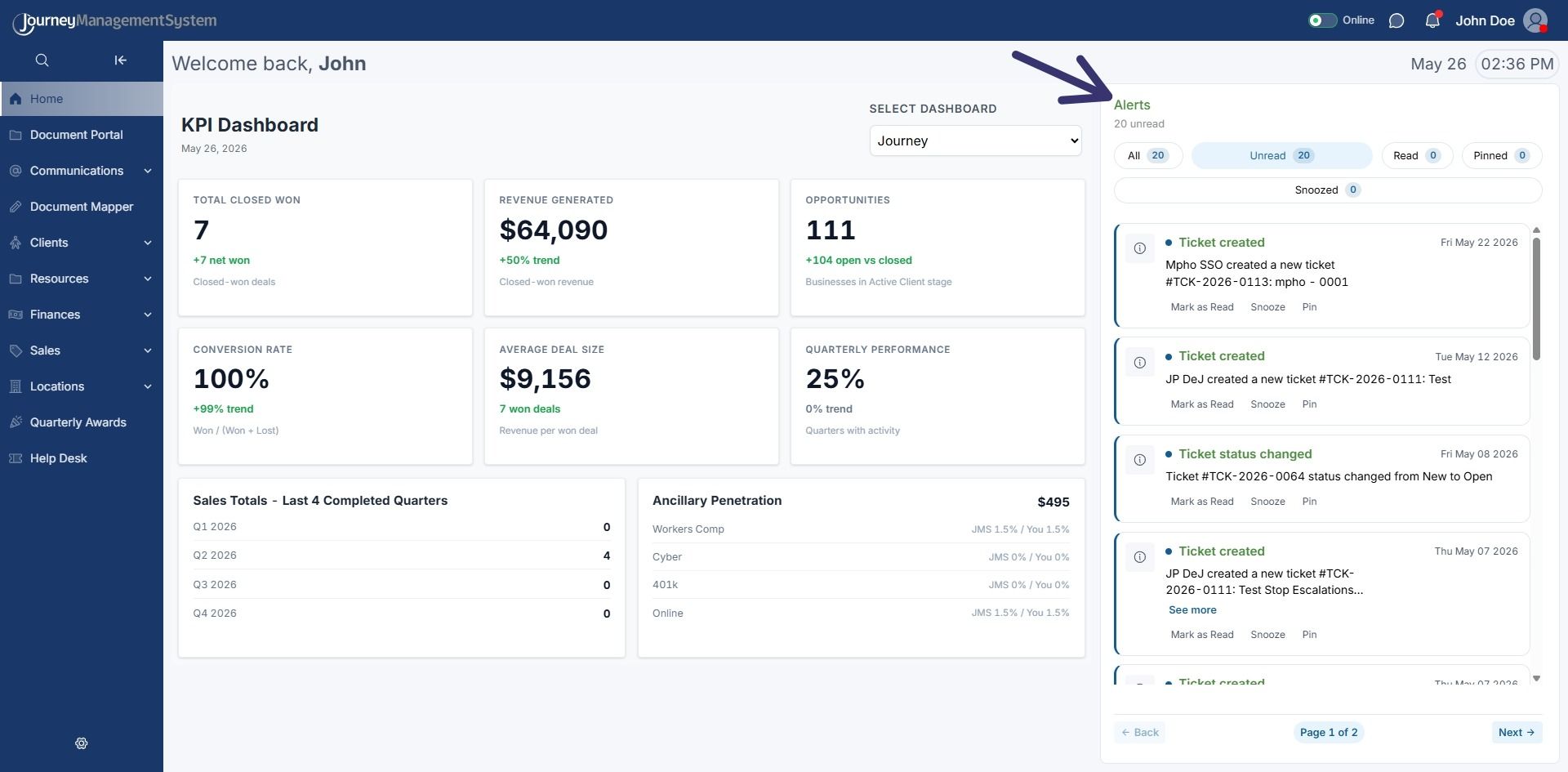
Alerts may include:
- New tickets created
- Ticket status changes
- Business comments
- Client updates
- Other system notifications
The Alerts panel helps users stay informed without needing to search through different areas of JMS.
Alert filters
Section titled “Alert filters”At the top of the Alerts panel, JMS provides filters to help organise updates.
Shows every alert available to the user.
Unread
Section titled “Unread”Shows alerts that have not been reviewed yet.
Shows alerts that have already been marked as read.
Pinned
Section titled “Pinned”Shows alerts that were saved as important.
Snoozed
Section titled “Snoozed”Shows alerts that were temporarily hidden for later review.
These filters help users focus on the most important updates first.
Alert cards
Section titled “Alert cards”Each alert appears as a separate card.
An alert card may show:
- The alert type
- A short description
- The related date
- The ticket number, record, or update reference
- Quick actions
Some alerts may also include See more when the message is too long to display in full.
Alert actions
Section titled “Alert actions”Each alert card may include quick actions.
Mark as Read
Section titled “Mark as Read”Marks the alert as reviewed and removes it from the unread list.
Snooze
Section titled “Snooze”Temporarily hides the alert so it can be reviewed later.
Saves the alert as important so it can be found again easily.
These actions allow users to manage alerts directly from the homepage.
Opening related records
Section titled “Opening related records”Some alerts are connected to records inside JMS.
For example:
- A ticket alert may open the related ticket.
- A business comment alert may open the related business record or comment.
- A status update may open the record where the change happened.
This helps users move directly from the alert to the item that needs attention.
Alert page navigation
Section titled “Alert page navigation”If there are many alerts, the Alerts panel may include page navigation at the bottom.
This may include:
- Back
- Page number
- Next
This allows users to move through multiple pages of alerts without leaving the homepage.
Chat Panel
Section titled “Chat Panel”The chat icon in the top bar opens the JMS chat panel.
From the chat panel, users can:
- Search for other users
- Start a direct conversation
- View online and offline users
- Switch between direct chat and group conversations
- Type and send messages
This allows users to communicate without leaving the homepage.
User online status in chat
Section titled “User online status in chat”Inside the chat panel, users may have a status indicator next to their name.
This shows whether the person is currently online or offline.
This helps users know who may be available to respond quickly.
Profile Menu
Section titled “Profile Menu”The profile icon opens the user account menu.
Depending on permissions, this menu may include:
- Edit Profile
- Settings & Privacy
- Help & Support
- Log Out
- Lock Session
- Admin Tools
This menu gives users access to account settings, support options, session controls, and admin tools.
Franchise Owner View
Section titled “Franchise Owner View”The Franchise Owner Homepage gives franchise users a focused view of their own business performance, alerts, and key activity in JMS.
This page is designed to help franchise owners understand what is happening in their franchise without opening multiple sections.
What franchise owners see
Section titled “What franchise owners see”A franchise owner may see:
- KPI Dashboard
- Select Dashboard dropdown
- Sales totals
- Ancillary penetration
- Alerts panel
- Top bar
- Left menu
The information shown is usually connected to the franchise owner’s own franchise data.
Franchise KPI Dashboard
Section titled “Franchise KPI Dashboard”The KPI Dashboard gives franchise owners a quick view of performance.
It may include:
-
Total Closed Won
Shows the number of successful closed-won deals. -
Revenue Generated
Shows revenue linked to closed-won activity. -
Opportunities
Shows active opportunities currently in progress. -
Conversion Rate
Shows the percentage of opportunities that were won. -
Average Deal Size
Shows the average value of won deals. -
Quarterly Performance
Shows activity across the current quarter.
These numbers help franchise owners quickly understand how their franchise is performing.
Franchise dashboard selector
Section titled “Franchise dashboard selector”The Select Dashboard dropdown allows the franchise owner to choose the dashboard view they want to see.
For franchise users, this usually shows information connected to their franchise.
Franchise sales totals
Section titled “Franchise sales totals”The Sales Totals - Last 4 Completed Quarters section shows recent quarterly sales activity.
This helps franchise owners compare performance over time and identify trends.
Franchise ancillary penetration
Section titled “Franchise ancillary penetration”The Ancillary Penetration section shows additional service activity.
This may include:
- Workers Comp
- Cyber
- 401k
- Online
This helps franchise owners see which additional services are being used or adopted.
Franchise alerts
Section titled “Franchise alerts”The Alerts panel works the same way for franchise owners.
It helps them stay updated on:
- New tickets
- Ticket status changes
- Business comments
- Client updates
- Other important activity
Franchise owners can mark alerts as read, snooze alerts, pin important alerts, and open related records when follow-up is needed.
Left menu
Section titled “Left menu”The left menu gives access to the main JMS modules available to the franchise owner.
Depending on permissions, the user may see sections such as:
- Home
- Communications
- Imports
- Clients
- Resources
- Finances
- Sales
- Locations
- Quarterly Awards
- Help Desk
This menu helps users move between the main areas of JMS.
Non-Sales User View
Section titled “Non-Sales User View”The Non-Sales user view focuses mainly on alerts and important system updates.
This view is useful for users who do not need sales dashboards or franchise performance data. Instead, the homepage gives them a clear place to review updates, track notifications, and stay informed about items that may need attention.
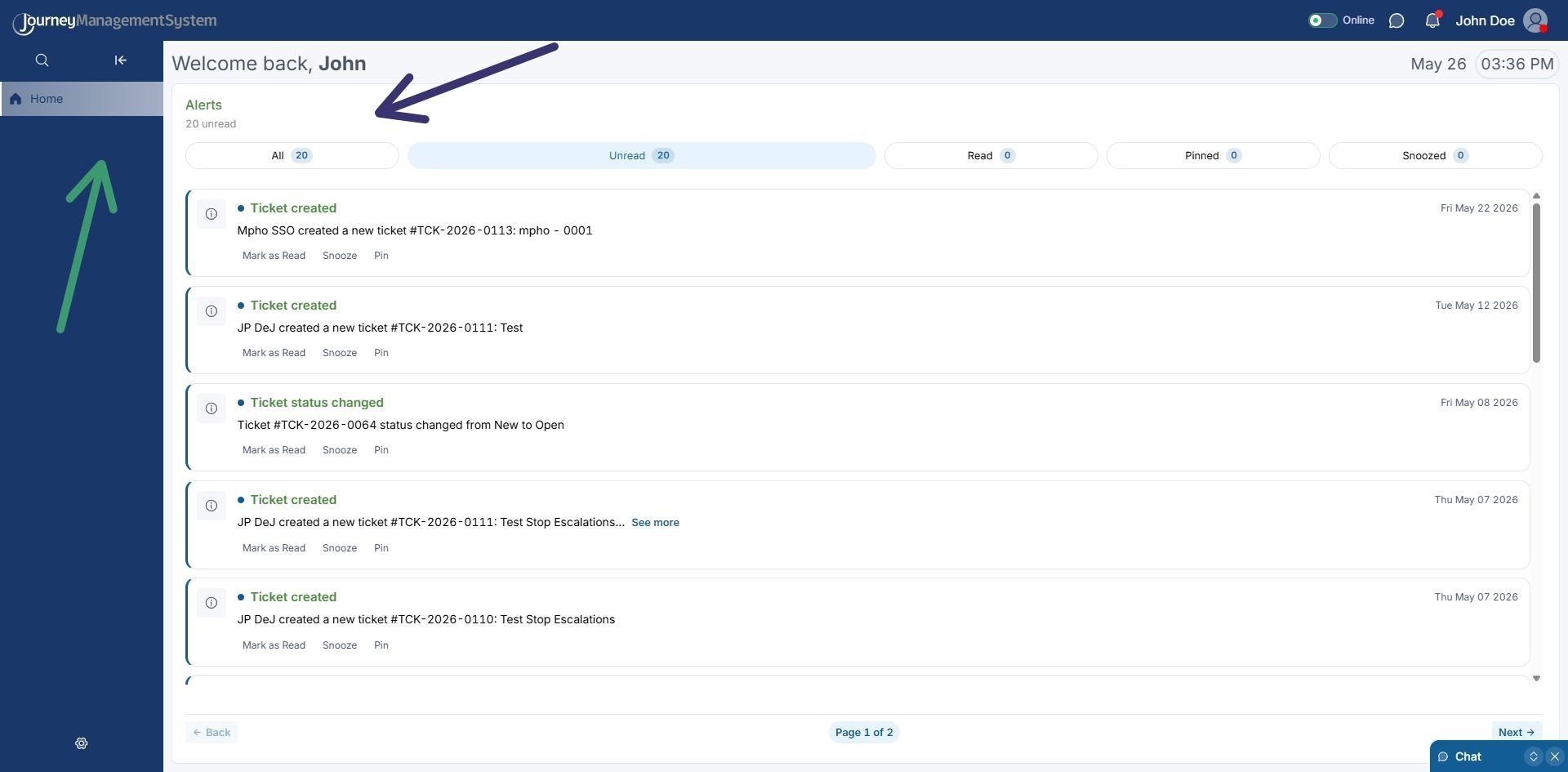
What non-sales users see
Section titled “What non-sales users see”When a non-sales user lands on the homepage, they may see:
- A welcome message
- Current date and time
- Online or offline status
- Chat and notification icons
- User name and profile icon
- A large Alerts panel
Unlike the Admin or Franchise Owner views, this homepage does not focus on revenue, deals, or sales performance.
The main purpose is to help non-sales users stay informed and respond to important updates.
Non-sales alerts panel
Section titled “Non-sales alerts panel”The Alerts panel is the main focus of this view.
It shows updates such as:
- New tickets created
- Ticket status changes
- Business comments
- Important system notifications
- Updates linked to records inside JMS
Each alert gives a short summary so users can quickly understand what happened.
Non-sales alert filters
Section titled “Non-sales alert filters”The filters at the top of the Alerts panel help users organise updates.
Shows all alerts available to the user.
Unread
Section titled “Unread”Shows alerts that still need to be reviewed.
Shows alerts that have already been reviewed.
Pinned
Section titled “Pinned”Shows alerts saved as important.
Snoozed
Section titled “Snoozed”Shows alerts temporarily hidden for later review.
These filters make it easier for users to manage updates without feeling overwhelmed.
Non-sales alert cards
Section titled “Non-sales alert cards”Each alert appears as its own card.
An alert card usually includes:
- The alert type
- A short description
- The date of the update
- Quick actions for managing the alert
Some alerts may include See more when the message is too long to display fully.
Non-sales alert actions
Section titled “Non-sales alert actions”Users can manage alerts directly from the homepage.
Mark as Read
Section titled “Mark as Read”Marks the alert as reviewed.
Snooze
Section titled “Snooze”Temporarily hides the alert so the user can return to it later.
Keeps the alert easy to find again.
These actions help non-sales users keep their homepage organised.
Opening related records
Section titled “Opening related records”Some alerts are connected to records inside JMS.
For example:
- A ticket alert may open the related ticket.
- A business comment alert may open the related business or comment.
- A system update may open the related record.
This allows users to go directly from an alert to the item that needs attention.
Summary
Section titled “Summary”The JMS homepage changes based on the user’s role.
- Admin users see a full performance overview across JMS.
- Franchise owners see performance and alerts connected to their franchise.
- Non-sales users mainly see alerts and system updates.
This approach keeps the homepage useful for each type of user while avoiding unnecessary information.
The homepage helps users:
- Start from one central place
- Review key updates
- Monitor relevant performance data
- Manage alerts
- Open related records quickly
- Communicate through chat
- Access profile and account options